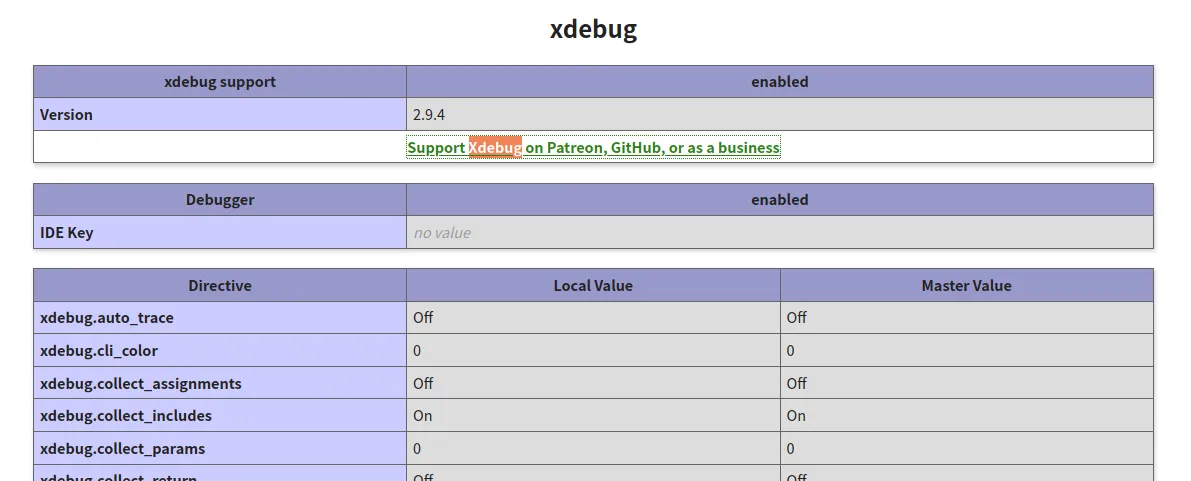
ubuntu配置vscode+xdebug
vscode安装
直接去官网下载deb包,然后双击即可完成安装
加两个配置选项
"editor.mouseWheelZoom": true,
"php.validate.executablePath": "/usr/bin/php"
第一个是直接用滚轮缩放大小,并且图标的大小不变,第二个是配置php的路径
之后安装一些插件就不说了
apache环境
直接安装
sudo apt install apache2
然后安装php模块
sudo apt-get install libapache2-mod-php
之后,修改一下html目录的用户和组
chown pxy html/ -R
chgrp pxy html/ -R
xdebug
php -i > a.txt
然后将 a.txt 的内容拷贝到
自动帮你分析phpinfo的内容(不过现在只支持php7了)
-
Download xdebug-2.9.4.tgz
-
Install the pre-requisites for compiling PHP extensions.
On your Ubuntu system, install them with:apt-get install php-dev autoconf automake -
Unpack the downloaded file with
tar -xvzf xdebug-2.9.4.tgz -
Run:
cd xdebug-2.9.4 -
Run:
phpize(See the FAQ if you don’t havephpize).As part of its output it should show:
Configuring for:
...
Zend Module Api No:      20170718
Zend Extension Api No:   320170718
If it does not, you are using the wrong phpize. Please follow this FAQ entry and skip the next step.
-
Run:
./configure -
Run:
make -
Run:
cp modules/xdebug.so /usr/lib/php/20170718 -
Update
/etc/php/7.2/cli/php.iniand change the line
zend_extension = /usr/lib/php/20170718/xdebug.so -
Please also update
php.inifiles in adjacent directories, as your system seems to be configured with a separatephp.inifile for the web server and command line.
重点是后面几个步骤:
-
cp modules/xdebug.so /usr/lib/php/20170718 -
修改
/etc/php/7.2/cli/php.ini文件内容,加上zend_extension = /usr/lib/php/20170718/xdebug.so -
然后还需要修改
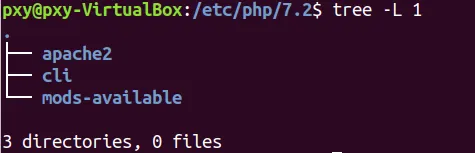
/etc/php/7.2/apache2目录下的 php.ini 这个才是web的
如图, cli 目录是命令行, apache2 才是web的
- 之后还需要修改
mods-available目录下的文件
pxy@pxy-VirtualBox:/etc/php/7.2/mods-available$ cat xdebug.ini
;zend_extension=xdebug.so
xdebug.remote_enable = 1
xdebug.remote_port = 9000
;xdebug.idekey = PHPSTORM
xdebug.remote_host=localhost
xdebug.remote_autostart = 1
xdebug.show_error_trace = 1
- 最后需要在web和cli下的
conf.d中做一次软链接
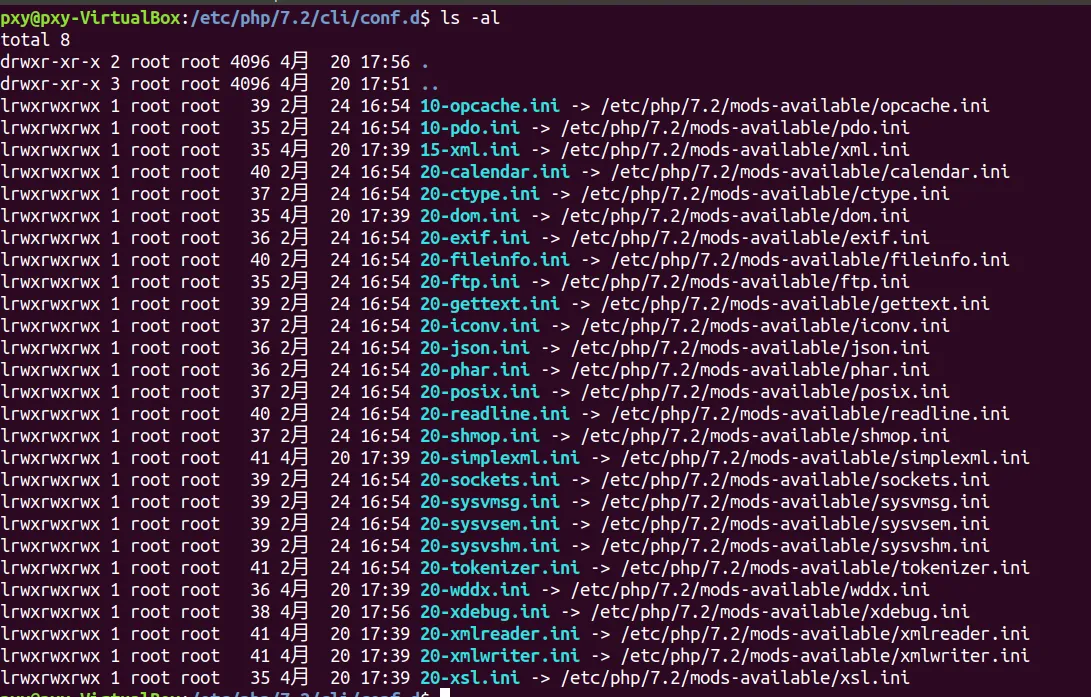
至此xdebug+vscode就配置好了